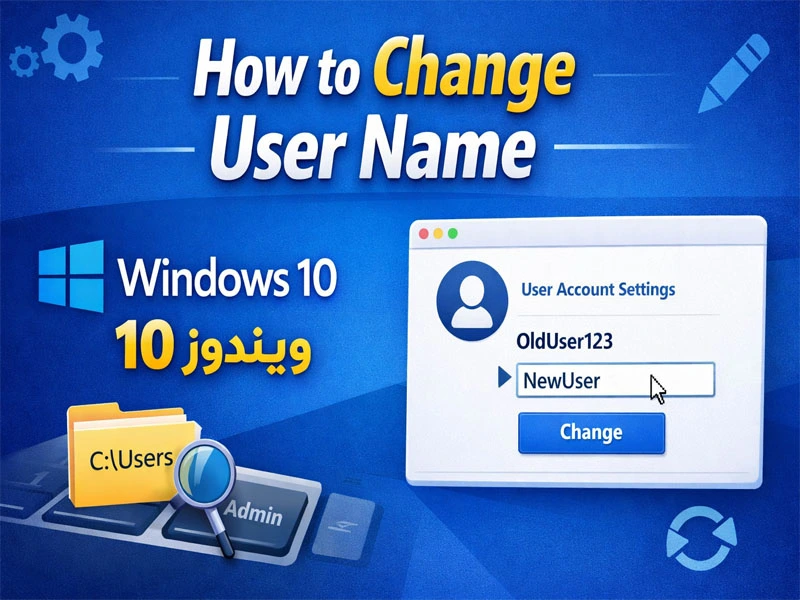
If your PC is running Windows 10 and you don’t like your current username 😅
maybe it’s old, misspelled, or just not professional… no worries, you can change it super easily — and without installing any extra software.
Let’s break it down 👇
✅ Method 1: Change Local Account Name
If you’re using a Local Account (not linked to Microsoft):
Steps:
- Click on Start
- Type Control Panel and open it
- Go to User Accounts
- Click Change your account name
- Type the new name
- Hit Change Name
Done ✅
Restart your PC and you’ll see the updated name.
✅ Method 2: Change Microsoft Account Name
If your PC is connected to a Microsoft account:
- Go to the official Microsoft website
- Sign in to your account
- Open Your Info
- Click Edit Name
- Enter the new name and save
After that, restart your PC and it’ll sync automatically.
✅ Pro Method (Using netplwiz)
Want a faster way? 👀
- Press Win + R
- Type: netplwiz
- Select your account
- Click Properties
- Change the name in User name
- Click OK → Apply
⚠️ Just keep in mind:
This changes the login name, not the actual user folder inside:
C:\Users
🎯 Why Would You Change Your Username?
- You bought a used laptop
- Your name is spelled wrong
- You want a more professional name
- You’re recording tutorials and want a clean setup
💡 Pro Tip
Before making big changes, create a Restore Point — just in case.
System Requirements For Microsoft Windows 10 April 2023
Before you start Microsoft Windows 10 April 2023 free download, make sure your PC meets minimum system requirements.
- Memory (RAM): 2 GB of RAM required
- Hard Disk Space: 6 GB of free space required
- Processor: Intel Dual Core or higher processor
Microsoft Windows 10 April 2023 Free Download
Click on the button below to start Microsoft Windows 10 April 2023 Free Download. This is a complete offline installer and standalone setup for Microsoft Windows 10 April 2023. This would be compatible with both 32 bit and 64 bit windows.